 TESTED 13 Jul
9L0-415 Online Practice Questions and Answers
You have configured several network locations on your OS X Mountain Lion computer. How can you change from one location to another?
A. In Network preferences, click Advanced, click Manage Locations, and then select a network location.
B. Choose a network location from the Network Locations Input menu on the right side of the Finder menu bar.
C. Choose Location from the Apple menu, and then choose a network location from the submenu.
D. In Network preferences, choose Manage Locations from the Action pop-up menu below the Interfaces list, and select a network location.
Review the screenshot, and then answer the question below.
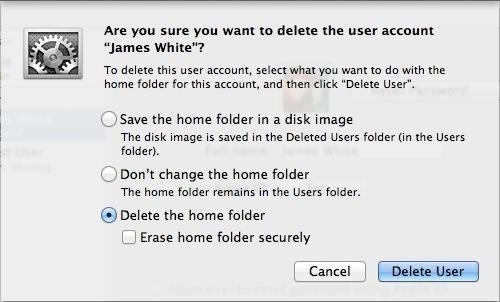
If you click Delete User in the dialog shown above, what will happen to James White's home folder?
A. It will be moved to the Trash.
B. "Deleted" will be appended to the home folder name, and it will be archived in Time Machine in a compressed and encrypted file.
C. "Deleted" will be appended to the home folder name, and its permissions will be changed to allow administrator user access only.
D. It will be deleted immediately, without being moved to the Trash.
If an issue disappears when a Safe Boot is successful, you must find and remove the third- party startup resource that caused the issue. The best way to isolate the problem is to start up the Mac in Verbose mode and then observe where the startup process fails. Verbose mode is initiated by holding down Command-V during system startup.
A. Which changes are made when OS X Safe Boots?
B. What backup destination disks does Time Machine support?
C. How do network devices acquire and use self-assigned TCP/IP addresses?
D. How do you further resolve an issue that disappears when the Mac successfully safe- boots?
If a connected peripheral doesn't appear in System Information, the issue is likely to be hardware related. Troubleshoot accordingly.
A. What are the four default top-level folders visible in the Finder?
B. How can you select a new printer driver for a configured printer?
C. How can you encrypt a disk without losing its contents?
D. What can you infer about a connected peripheral if it doesn't appear in the System Information application?
What does the Disk Utility Verify and Repair feature do?
A. The system version, build number, and hardware serial number are located in the About This Mac dialog or the login screen. The system version number defines the specific version of OS X currently installed. The system build number is an even more specific identifier used primarily by developers. Finally, the hardware serial number is a unique number used to identify your specific Mac.
B. The Disk Utility Verify and Repair feature is used to verify or repair the partition scheme and directory structure of a volume. These elements contain the information used to locate files and folders on the volume.
C. The Traceroute tab of Network Utility allows you to verify the connection hops between your Mac and a remote host.
D. The master password is used to reset local account passwords.
How do you engage Quick Look? Which applications support it?
A. The Privacy pane of Security and Privacy preferences can be used to allow or disallow applications' access to Location Services, Contacts, Calendars, Reminders, social network services, and Accessibility application access.
B. Quick Look is engaged by simply pressing the Space bar when a document is selected. Applications that support Quick Look include the Finder, Time Machine, Mail, and most open and save browser dialogs.
C. The Activity Monitor application is used to monitor open processes and applications.
D. You can use the System Information application to easily scan all the appropriate application locations and return a list of installed applications.
What Wi-Fi authentication protocols are supported by OS X?
A. The Setup Assistant process guides a user through initial configuration of OS X Mavericks.
B. Disk Utility is the primary application for creating and managing disk images.
C. OS X supports authenticated Wi-Fi via the following authentication protocols: WEP, WPA/WPA2 Personal, and WPA/WPA2 Enterprise, which includes support for 802.1X authentication.
D. OS X supports the following network interfaces and protocols: Ethernet IEEE 802.3 family of hardware network interface standards ?Wireless (Wi-Fi) IEEE 802.11 family of hardware network interface standards FireWire IEEE 1394 bridged network interface Thunderbolt bridged network interface Bluetooth wireless hardware network interface USB connectivity via cellular network adapters or iOS devices with cellular network service Virtual private network (VPN) virtual network interface via the Point-to-Point Tunneling Protocol (PPTP) VPN virtual network interface via the Layer 2 Tunneling Protocol (L2TP) over Internet Protocol Security (IPSec) VPN virtual network interface via Cisco IPSec Point-to-Point Protocol over Ethernet (PPPoE) virtual network interface ?6 to 4 virtual network interface Virtual local area network (VLAN) virtual network interface via the IEEE 802.1Q standard Link Aggregation virtual network interface via the IEEE 802.3ad standard Transmission Control Protocol/Internet Protocol (TCP/IP), also known as the Internet protocol suite Dynamic Host Configuration Protocol (DHCP) Domain Name Service (DNS) protocol Network Basic Input/Output System (NetBIOS) and Windows Internet Naming Service (WINS) protocols Authenticated Ethernet via the 802.1X protocol
What's unique about the permissions of the /Users/Shared folder?
A. When fast user switching is enabled, all users are allowed to see other users' locally connected disks.
B. The Shared folder is set up to allow all users to read and write files, but only the user who owns an item can delete it from the Shared folder. This is accomplished using the sticky bit permissions setting.
C. The Ping tab of Network Utility allows you to test basic connectivity to another network host by sending and then waiting for the return of a ping packet.
D. You can prevent automatic updates for all users by disabling the options in App Store preferences. You can further restrict a user's ability to use the Mac App Store by configuring Parental Controls for the user's account.
A standard user can connect to any non-WPA Enterprise Wi-Fi network via the Wi-Fi status menu. Because the system Keychain must be modified for WPA Enterprise connections, only an administrative user can establish these types of connections.
A. What's the easiest method in OS X to configure VPN settings?
B. Through what mechanism can a standard user configure Wi-Fi settings?
C. Which applications can manage document locking?
D. How can you limit the use of Location Services?
What's the security risk of enabling client sharing services?
A. If a network device needs to send data to another network device on the same LAN, it addresses the outgoing packets based on the destination device's MAC address.
B. Assuming the default settings for OS X, a standard user can only configure directly attached or local network printers from the Print dialog. Also, the appropriate drivers must be installed before the standard user configuring the printer.
C. Any application that supports Auto Save and the Finder can manage document locking.
D. If a client sharing service is compromised, an unauthorized user can control your Mac and execute unwanted applications or processes.

Home | Contact Us | About Us | FAQ | Guarantee & Policy | Privacy & Policy | Terms & Conditions | How to buy
Copyright © 2026 pass4itsure.com. All Rights Reserved